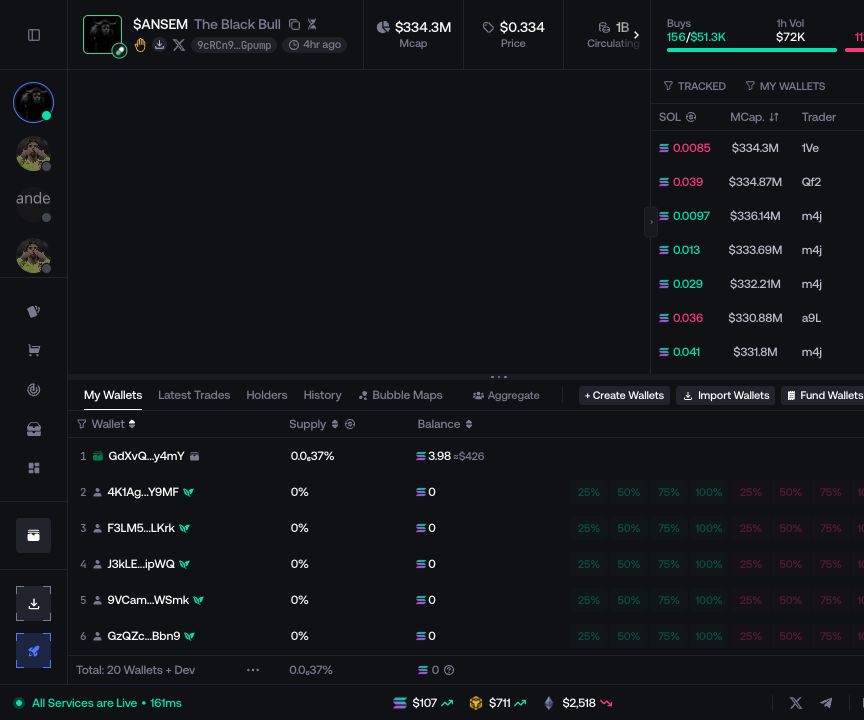
Tracker
Label, import, bookmark, and export wallet addresses from one account list.
Tracker is a modal for keeping known addresses identifiable across Proxima. A tracked wallet can have a name, marker, and bookmark state, but those labels do not prove who controls the address.
Add one address
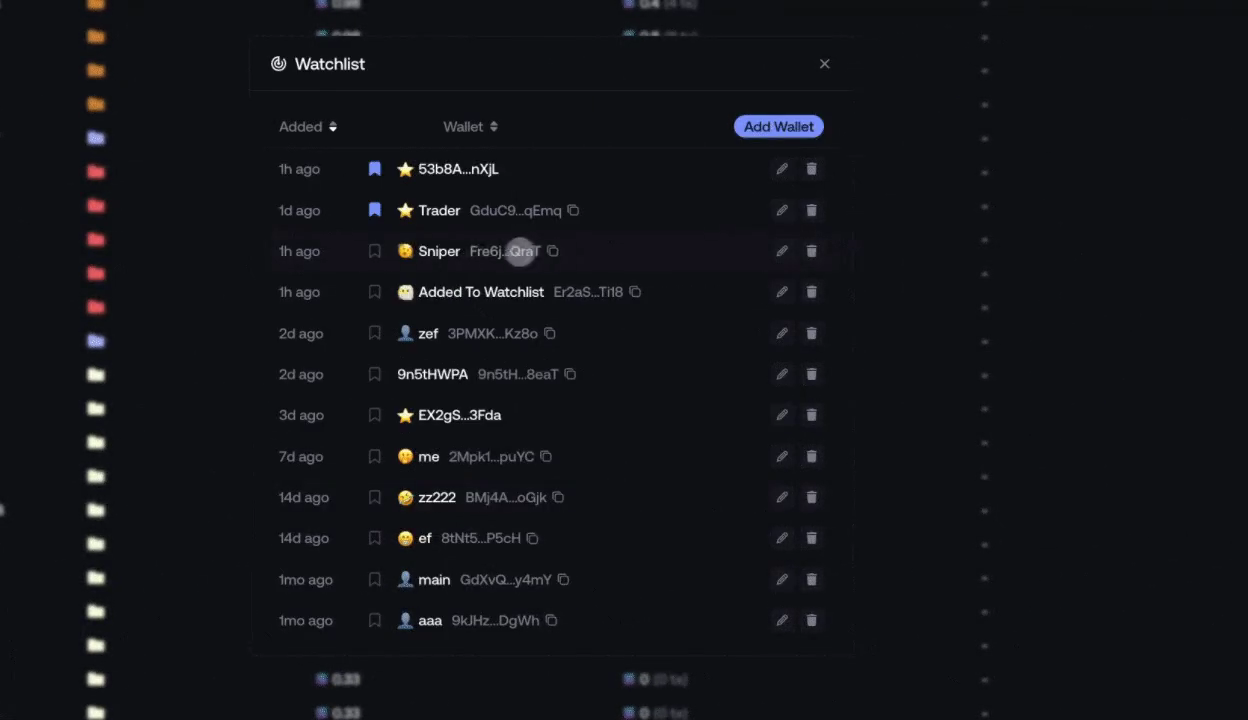
Select Add Wallet, enter the full address, then add a recognizable name and marker. Select Track to save it.
Import several addresses
Select Bulk Add to import several wallets together. Axiom, GMGN, BullX, and RayBot exports are supported when their current format is recognized. Review every parsed address and network before saving the batch.
Track an address where you find it
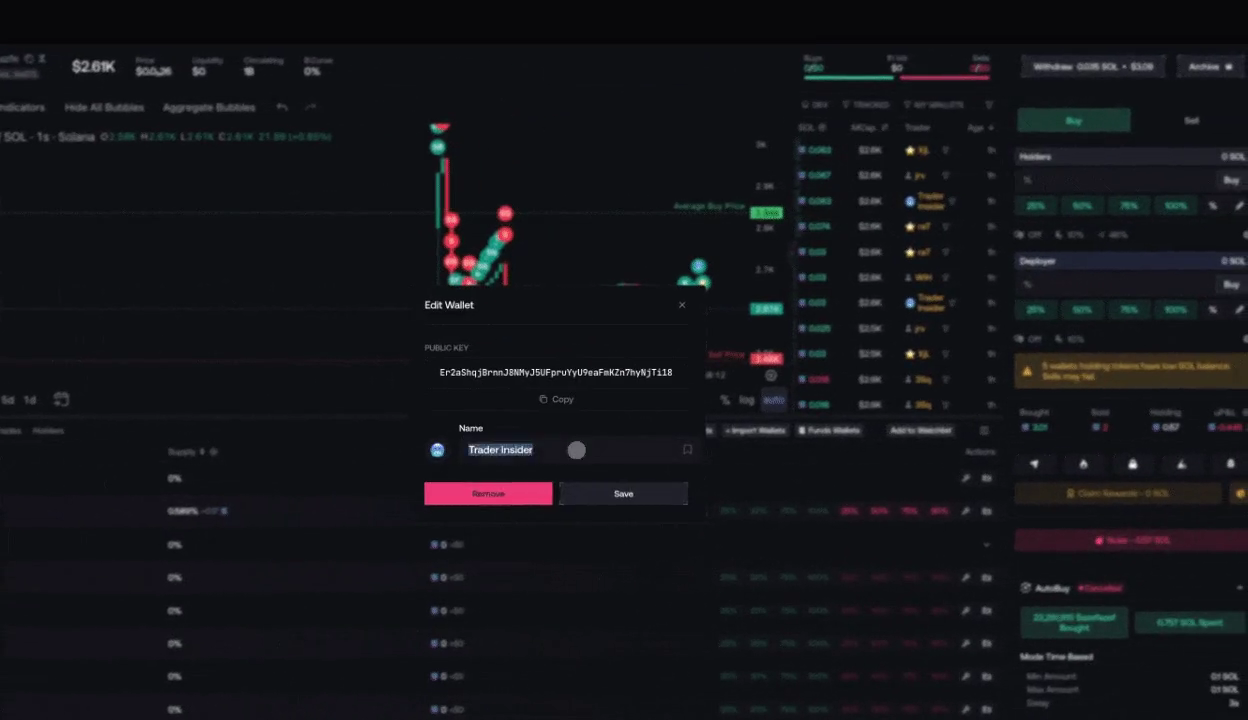
Use the tracking action exposed beside a wallet in the Live Workspace, Trade Feed, or wallet table. The saved address then appears in Tracker without leaving the current task.
Manage the list
Use the network selector to show all wallets or only the current SVM or EVM group.
Sort by Added or Wallet. Bookmarked entries remain at the top.
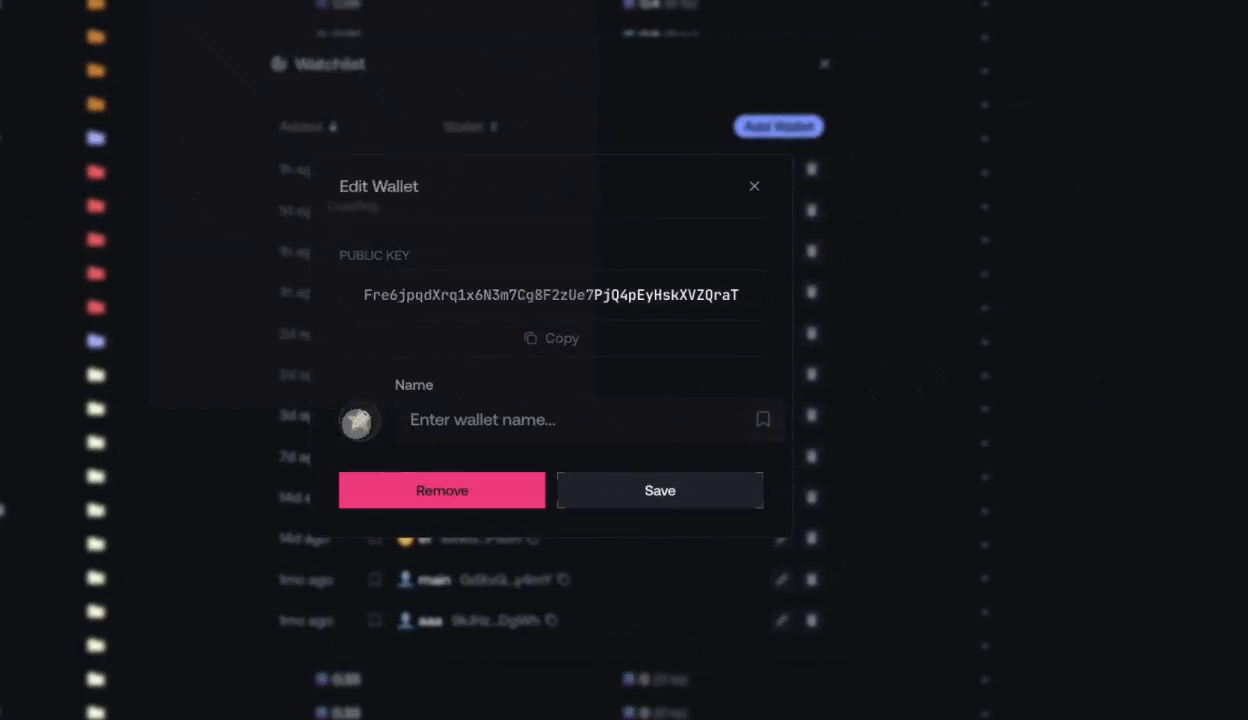
Edit a wallet to update its label or marker, or remove it when it is no longer needed.
Use Export and choose one of the formats currently offered by Proxima. Remove All can delete several Tracker entries, so review its confirmation before continuing.
Bookmark a withdrawal destination
Select the ribbon icon to bookmark an entry. Bookmarked addresses appear in the withdrawal recipient selector.